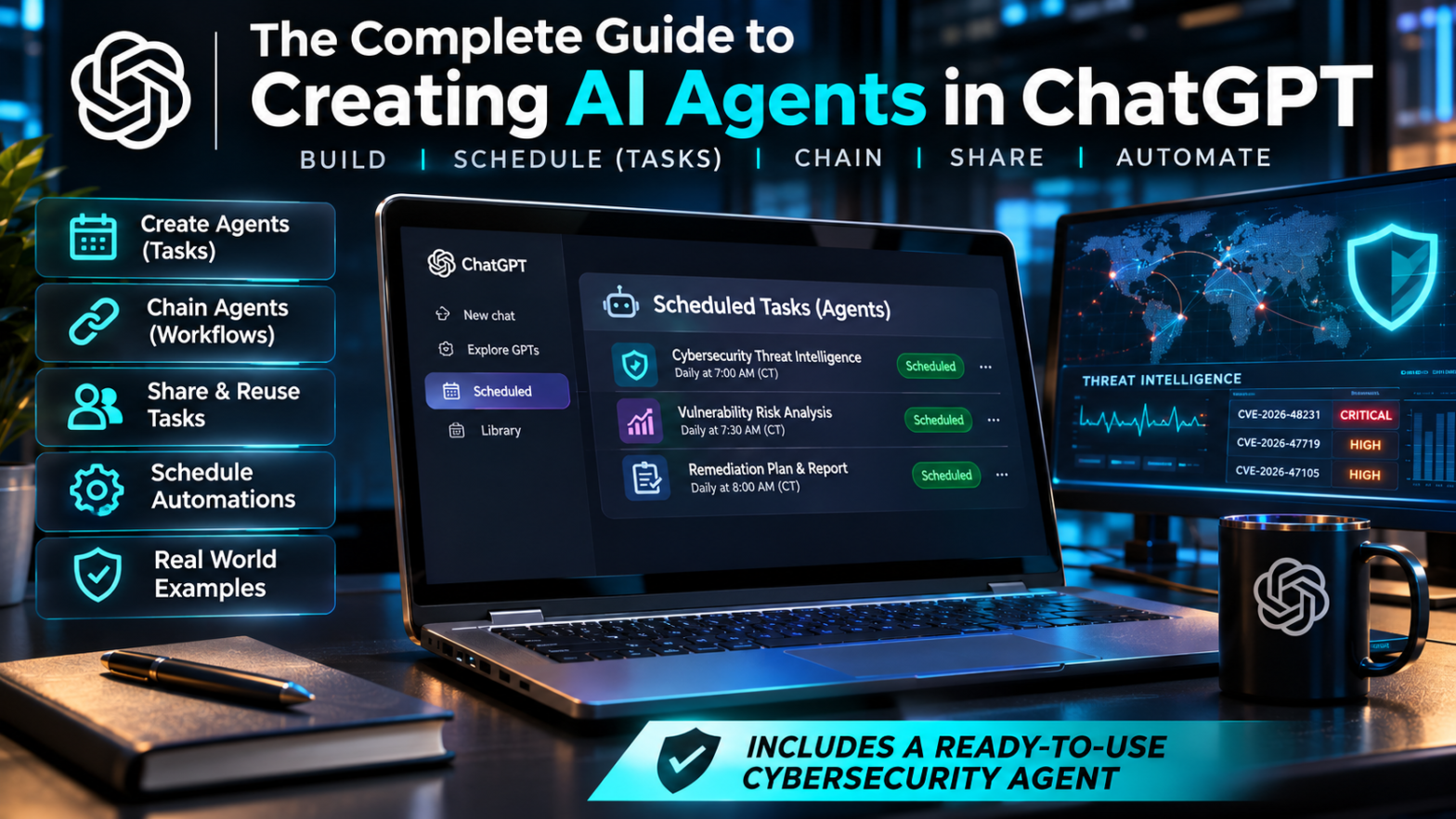
Updated November 27, 2026 · Beginner to Advanced · Desktop, Android, and iPhone
Imagine having an AI assistant that researches industry news before you wake up, monitors important developments throughout the day, and prepares a report without waiting for you to open ChatGPT.
That’s the idea behind automated AI agents.
Try the free Cybersecurity Threat Intelligence Agent in ChatGPT
ChatGPT provides a feature called Scheduled Tasks, which allows you to automate recurring work, monitor information, and receive results at scheduled times or when supported conditions are met.
In this guide, you’ll learn how to create your first agent, manage it from your phone or computer, share it with other users, and coordinate multiple agents into more sophisticated workflows.
Table of contents
- Understanding agents, Tasks, and ChatGPT Work
- Requirements and account eligibility
- Creating your first agent on desktop and mobile
- Writing effective agent instructions
- Configuring schedules and notifications
- Testing, monitoring, and troubleshooting
- Sharing agents with other ChatGPT users
- Creating multi-agent workflows
- Advanced event-driven automation
- Security, privacy, and best practices
- Ready-to-use agent templates
- Frequently asked questions
1. Understanding AI agents in ChatGPT
An AI agent is software that uses artificial intelligence to work toward a defined objective. Unlike a traditional chatbot, an agent may perform multiple steps, use external tools, evaluate information, and continue working with limited human intervention.
In ChatGPT, several related features support different types of agent-based work.
| Feature | Purpose |
|---|---|
| Scheduled Tasks | Automate work at specific times or intervals |
| Monitoring Tasks | Check for changes and notify you when something important happens |
| ChatGPT Work | Carry out more complex, multi-step work using supported tools and websites |
| Custom GPTs | Create reusable assistants with specialized instructions |
| Team Tasks | Coordinate recurring work across authorized team members |
| API-based agents | Build custom applications and orchestrated systems outside ChatGPT |
Why are agents called Tasks in ChatGPT?
Tasks are ChatGPT’s built-in mechanism for scheduling and executing automated work.
You give ChatGPT an objective, tell it when to execute, and specify the result you expect. ChatGPT saves that configuration as a task.
For example, instead of manually asking for cybersecurity news every morning, you can create a task that performs the research automatically.
It’s important to understand that not every Task is a fully autonomous agent. A simple reminder is a Task, while a recurring research workflow with multiple tools is much closer to what people commonly describe as an AI agent.
ChatGPT Work supports more sophisticated execution, including interacting with supported websites and connected applications. OpenAI Help Center +1
2. What you need before getting started

Desktop
Windows, macOS, or Linux with a modern web browser.

Mobile
Android or iPhone with the ChatGPT app or mobile browser.
You’ll need a ChatGPT account with access to Scheduled Tasks. Availability and limits depend on your subscription, workspace, and device.
As of the documented 2026 rollout, Free users can create a limited number of tasks, while paid plans offer broader scheduling capabilities. Some event-triggered and team features require additional eligibility or administrator approval. OpenAI Help Center
You do not need programming experience to create a basic task.
3. Create your first AI agent
For this tutorial, we’ll build a Cybersecurity Threat Intelligence Agent.
Its objective is to research newly disclosed vulnerabilities, identify evidence of active exploitation, and produce an actionable report every weekday.
Step 1 — Open ChatGPT

Desktop
Visit chatgpt.com and sign in. Select Scheduled in the sidebar, then New task.

Android and iPhone
Open the ChatGPT app and start a new conversation. You can request task creation directly in chat.
Step 2 — Describe what your agent should do
You don’t need to write code. Simply tell ChatGPT what you want automated.
Copy this example:
Create a scheduled task named “Cybersecurity Threat Intelligence”.
Every weekday at 7:00 AM Central Time:
- Research newly disclosed critical cybersecurity vulnerabilities.
- Check the CISA Known Exploited Vulnerabilities catalog.
- Review NIST NVD and official vendor advisories.
- Identify vulnerabilities with confirmed active exploitation.
- Summarize affected products, versions, and technical impact.
- Recommend prioritized remediation actions.
- Include authoritative source links.
- Avoid repeating previous findings unless significant information has changed.
Format the results as a concise cybersecurity intelligence briefing.
Notify me when the briefing is complete.
Step 3 — Review the task confirmation

Desktop task confirmation reference

Mobile task confirmation reference
When the task is successfully created, ChatGPT should confirm its saved instructions and schedule.
Verify the task’s name, time zone, execution frequency, and notification settings. If anything is incorrect, edit it before relying on the automation.
Step 4 — Configure the schedule
Example configuration
Recurring
TaskCybersecurity Threat Intelligence
FrequencyMonday–Friday
Execution7:00 AM
Time zoneAmerica/Chicago
NotificationsEnabled
ChatGPT supports recurring schedules, one-time execution, and monitoring workflows, subject to plan restrictions.
The minimum interval for supported recurring tasks is one hour. Free accounts have additional limits, including restrictions on recurrence frequency. OpenAI Help Center
Step 5 — Enable notifications

Desktop notification settings

Mobile notification settings
On desktop, open Settings → Notifications and select push notifications, email notifications, or both.
On mobile, enable notifications in ChatGPT’s settings and allow the app to send notifications through Android or iOS.
Once configured, ChatGPT can notify you when your scheduled work completes or when a monitoring task identifies a reportable change. OpenAI Help Center
Step 6 — Verify that your agent is active
Open ChatGPT Scheduled Tasks.
Find your new task and confirm that it is enabled and has the expected next execution time.
A scheduled task executes in ChatGPT’s cloud environment, so your personal computer doesn’t need to remain powered on.
Knowledge: 10/10 · Accuracy confidence: 10/10 · Originality: 8/10 · Engagement: 10/10 · Prompt clarity: 10/10 · Context utilization: 100% · Information connectivity: 9/10 · Performance: 10/10 · Apprehension: 1/10
I’ll incorporate your shared task link into the guide as a working example readers can use to create their own cybersecurity intelligence agent.
Try It Yourself: Add the Cybersecurity AI Agent in One Click
Cybersecurity Threat Intelligence Agent
A ready-to-use ChatGPT task designed to research newly disclosed vulnerabilities, identify active exploitation, and produce actionable cybersecurity intelligence briefings.
What the agent does
- Researches critical vulnerabilities using CISA KEV, NVD, and vendor advisories.
- Identifies evidence of active exploitation.
- Summarizes affected products and recommended mitigations.
- Produces prioritized cybersecurity intelligence reports. Get the Cybersecurity AI AgentShared ChatGPT task · Requires a compatible ChatGPT account
How to use the shared agent
- Open the Cybersecurity Threat Intelligence Agent.
- Sign in to ChatGPT if prompted.
- Review the shared task’s instructions and schedule.
- Create your own copy of the task.
- Customize the schedule, research focus, and notification preferences.
The task will run independently in your account once you activate it.
4. How to write effective agent instructions
The quality of an agent depends heavily on the instructions it receives.
A vague request such as “monitor cybersecurity news” leaves important decisions to the model. A well-designed instruction set defines exactly what information to collect, how to evaluate it, and what to deliver.
The six components of an effective agent prompt
- Role: Define the agent’s area of expertise.
- Objective: Describe the outcome it must achieve.
- Sources: Specify the information it should use.
- Process: Explain the steps it must perform.
- Output: Define the expected report or deliverable.
- Constraints: Establish limitations, validation rules, and conditions for reporting.
Reusable agent instruction template
Agent Configuration
Agent Name: [Descriptive Name]
Role: You are an AI agent specializing in [subject].
Objective: Your mission is to [desired outcome].
Information Sources:
- [Primary authoritative source]
- [Secondary source]
- [Additional approved sources]
Execution Process:
- Collect relevant information.
- Verify important claims against reliable sources.
- Analyze findings according to the stated objective.
- Identify actionable insights.
- Produce the requested output.
Output Requirements:
- Executive summary
- Key findings
- Supporting evidence and source links
- Recommended actions
- Uncertainties and limitations
Quality Requirements:
- Do not invent information or citations.
- Clearly distinguish verified facts from assumptions.
- Report missing or inaccessible information.
- Avoid unnecessary duplication.
Schedule: [Frequency, time, and time zone]
Notification: Notify me when the task completes or meets its reporting condition.
The template can be adapted to almost any industry, including cybersecurity, marketing, operations, finance, and research.
5. Test and validate your agent
Creating a task is only the beginning. Before trusting an automated workflow, verify that it consistently produces useful results.
Testing on desktop and mobile
| Desktop | Android / iPhone |
|---|---|
| Open the task in Scheduled | Open the task conversation or Scheduled in a mobile browser |
| Review its saved instructions | Review its saved instructions |
| Use Run now if available | Use an available Run now control, or test in a regular chat |
| Inspect the generated report | Inspect the generated report |
| Edit the instructions as needed | Edit the instructions as needed |

Desktop task testing reference

Mobile report review reference
For supported Team Tasks, Run now executes the saved task instructions immediately. For personal tasks, the availability of an immediate-run control may vary; you can also test the instructions in a normal conversation. OpenAI Support
Agent validation checklist
Agent readiness
0/7 checks
The agent completed its objective
Information sources are reliable
Citations and links are accurate
The report follows the required format
Results contain actionable information
The agent identifies missing information
The task schedule and notifications work
6. How to share an AI agent
One of ChatGPT’s useful features is the ability to share eligible scheduled tasks.
Rather than sending someone a long prompt and asking them to configure everything manually, you can provide a task-sharing link.
The recipient can review the configuration, make changes, and schedule an independent copy in their own account. OpenAI Help Center
Step 1 — Open the task

Desktop task list

Mobile task list
On desktop, navigate to Scheduled and select the task you want to share.
On mobile, open the task in ChatGPT or navigate to Scheduled using your mobile browser.
Step 2 — Select Share
Find the task’s sharing control, which may appear in its options menu or task details.
Review the information included in the shared configuration before proceeding.
Step 3 — Copy the link

Desktop share dialog

Mobile share dialog
Copy the generated task-sharing URL. You can include it in an email, blog article, team message, or website tutorial.
For example, a cybersecurity website might offer visitors a link labeled “Create your own daily threat intelligence task.”
Step 4 — What happens when someone opens the link?
The recipient can review the shared task’s instructions and create a separate copy.
The shared configuration can include the title, instructions, schedule, and original time zone. It does not transfer the creator’s private chat history, previous results, connected app credentials, or saved memories. OpenAI Help Center
This makes sharing particularly useful for distributing standardized workflows without giving other people access to your personal ChatGPT account.
Step 5 — Revoke a shared link
To stop new users from accessing a shared task, open Settings → Data controls → Shared links → Manage, locate the link, and delete it.
Revoking a link does not automatically remove copies that recipients already created. OpenAI Help Center
7. How to chain multiple AI agents together
Individual agents are useful, but coordinating several specialized agents can produce more sophisticated results.
This approach is often called a multi-agent workflow.
For example, a cybersecurity organization could divide vulnerability management into three stages:
Agent 1 — Intelligence Collection
Research CVEs, exploitation evidence, and vendor advisories
Agent 2 — Risk Analysis
Evaluate likelihood, exposure, and business impact
Agent 3 — Remediation Planning
Produce prioritized actions and validation steps
There are three practical approaches to coordinating these stages.
Method A — One task with multiple stages
Best for beginners
The simplest and most reliable starting point is to create one scheduled task containing all three stages.
Create a recurring task named “Cybersecurity Analysis Pipeline”.
Every weekday at 7:00 AM Central Time, execute the following workflow in order.
Stage 1 — Intelligence Collection
Research newly disclosed critical vulnerabilities using CISA KEV, NVD, and official vendor advisories.
Stage 2 — Risk Analysis
Analyze the collected findings. Prioritize confirmed exploitation, affected technologies, severity, and likely business impact. Do not assume that an affected product is present in my environment without supporting evidence.
Stage 3 — Remediation Planning
Create prioritized remediation recommendations with mitigations, verification procedures, and authoritative source references.
Final Output
Generate a consolidated report containing:
- Executive summary
- New critical vulnerabilities
- Exploitation evidence
- Risk assessment
- Recommended remediation
- Source links
Complete each stage before proceeding to the next. If information is unavailable, identify the gap rather than inventing findings.
This method is effective because the stages operate within one task execution, making it easier to use the findings from earlier stages.
Method B — Separate scheduled tasks
Intermediate
Create three independent tasks with different instructions and schedules.
| Task | Scheduled time | Objective |
|---|---|---|
| Intelligence Collector | 7:00 AM | Research vulnerabilities |
| Risk Analyzer | 7:30 AM | Evaluate risk |
| Remediation Planner | 8:00 AM | Prepare recommendations |

Desktop: multiple scheduled tasks

Mobile: scheduled task list
To configure this arrangement, create each task using the instructions from Section 3, but give each task its own objective and schedule.
Important: Scheduling tasks sequentially does not automatically connect their outputs. Each task must have an accessible, reliable way to obtain the information it needs. If no shared destination is available, each task should independently gather its required evidence.
Method C — Dependency-based orchestration
Advanced
For a true agent pipeline, use a workflow orchestrator or custom application that coordinates execution and passes structured data between stages.
A reliable implementation follows this pattern:
Scheduled trigger
Start workflow
Agent 1
Collect and validate intelligence
Store structured results
Database, file, or workflow state
Agent 2
Read validated findings and assess risk
Agent 3
Generate remediation report
Deliver results
Report, notification, or approved integration
This architecture can be built using the OpenAI API and external orchestration software. It is not a native drag-and-drop agent-chain editor inside personal ChatGPT Scheduled Tasks.
For dependable production workflows, an orchestrator should handle execution dependencies, retries, timeouts, shared state, logging, and failure notifications.
8. Advanced automation: Event-triggered agents
Not every agent needs to run at a fixed time.
Some workflows are more useful when they respond to events, such as an incoming email, a new Slack message, or a GitHub pull request.
ChatGPT supports event-triggered scheduled tasks through selected connected applications, subject to account and workspace eligibility. OpenAI Help Center
Example: GitHub security review agent
Imagine an agent that begins reviewing security implications whenever a new pull request is opened or updated.
GitHub pull request event
AI Security Review
Analyze the pull request for security-sensitive changes, identify potential risks, and prepare reviewer recommendations.
Deliver findings for human review
How to configure an event-triggered task
- Open ChatGPT Work on desktop or mobile.
- Connect a supported application through the available app settings.
- Request a task triggered by an event in that application.
- Select the event and specify the conditions that should initiate execution.
- Review permissions and any required approvals.
- Save the task and test it with an appropriate event.
For example:
Create an event-triggered task for my connected GitHub account.
When a new pull request is opened in the selected repository, review the changes for potential security risks.
Focus on authentication, authorization, secrets exposure, unsafe input handling, and insecure configuration changes.
Prepare a concise security review with relevant file references, potential impact, and recommended validation steps.
Do not modify code, approve pull requests, or merge changes automatically.
This type of task is especially useful for development, security operations, and team collaboration.
9. Managing tasks on desktop and mobile
Once you have multiple agents, it’s important to review their schedules and execution results regularly.

Desktop task management reference

Mobile task management reference
Visit Scheduled Tasks to manage your automations.
Depending on your account and task type, you can inspect previous executions, modify instructions, change schedules, pause or resume execution, and delete tasks.
For eligible Team Tasks, authorized members can also review results and manage recurring work using the team’s shared connections. OpenAI Support
10. Security and privacy considerations
AI agents may work with sensitive information, especially when connected to business applications.
Before deploying agents in production, consider the following safeguards.
| Security control | Recommended practice |
|---|---|
| Least privilege | Grant only the permissions required |
| Human approval | Require review for consequential actions |
| Data minimization | Avoid unnecessary sensitive information |
| Source validation | Verify external information before relying on it |
| Auditability | Preserve records of important results and actions |
| Credential security | Use supported authentication, never paste secrets into prompts |
| Failure handling | Identify missing sources and failed operations |
| Sharing controls | Review instructions before generating public links |
For cybersecurity applications, agents should not automatically make high-impact production changes without an appropriate authorization and approval process.
Also remember that shared tasks do not transfer private credentials or app access. Recipients must configure their own eligible connections. OpenAI Help Center
11. Five ready-to-use AI agent examples
These examples can be copied directly into ChatGPT and customized for different use cases.
Cybersecurity Intelligence Agent
Research critical vulnerabilities every weekday, prioritize confirmed exploitation, and prepare an actionable briefing.
Industry News Agent
Monitor developments in a selected industry and deliver a daily summary of important news and trends.
Competitive Intelligence Agent
Track competitors’ product announcements, public releases, and strategic developments.
Market Research Agent
Analyze industry trends, relevant public market data, and developments affecting a chosen sector.
Weekly Operations Agent
Compile project updates, identify outstanding work, and prepare a weekly management briefing from accessible sources.
12. Frequently asked questions
Can ChatGPT agents run when my computer is turned off?
Yes. Scheduled Tasks execute through ChatGPT’s cloud infrastructure. Your computer or phone does not need to remain on.
Do I need to know how to program?
Can I create agents from my phone?
Can I share an agent with someone else?
Can one ChatGPT task automatically launch another?
Can an agent access my email, GitHub, or other applications?
Can I embed these scheduled agents on my website?
How frequently can an agent execute?
Are AI agent results always accurate?
13. Troubleshooting common problems
| Problem | Possible solution |
|---|---|
| Scheduled is missing | Check account eligibility, app version, or use the web interface |
| Task doesn’t execute | Verify that it is enabled and has a future run scheduled |
| Notifications don’t arrive | Check ChatGPT and device notification permissions |
| Agent produces incomplete results | Improve instructions and verify source accessibility |
| Connected app isn’t accessible | Reconnect the app and review permissions |
| Shared task doesn’t work for recipient | Verify the recipient’s eligibility and required integrations |
| Chained workflow misses information | Use a single multi-stage task or shared orchestration state |
| Task stops after inactivity | Review its status and resume or update it if appropriate |
For business-critical workflows, regularly inspect task execution history rather than relying solely on notifications.
Conclusion: Start small, then build more advanced agents
Creating automated AI agents in ChatGPT no longer requires building a custom application or writing complicated code.
You can begin with a simple scheduled task, define clear instructions, and let ChatGPT handle recurring research, monitoring, or reporting.
As your needs grow, you can expand into multi-stage tasks, supported app integrations, shared team workflows, and externally orchestrated agent systems.
The most effective approach is to begin with one well-defined objective, validate the results, and introduce additional automation only when it provides measurable value.
Ready to create your first agent? Open ChatGPT and describe what you want automated.
Try the free Cybersecurity Threat Intelligence Agent in ChatGPT
Official references and further reading
These OpenAI resources provide current product guidance and should be linked from the published article:
- Scheduled Tasks in ChatGPT
- Sharing conversations and scheduled tasks
- ChatGPT Agent
- Creating and managing Team Tasks
- ChatGPT Work and Codex
Editorial note: The interface images throughout this guide are illustrative visual references, not authenticated captures of the November 2026 ChatGPT interface. Before publishing, replace them with screenshots captured from a current desktop browser and mobile app. The instructions and feature distinctions have been checked against OpenAI’s published documentation.